Deco App
The Deco app lets users configure and manage the Deco Wi-fi Mesh system from a Mobile device, The Deco App can be downloaded on Mobile devices only. Users can download the Deco App from Google Play Store or Apple App Store in case of iOS devices.
Deco App is designed to help users easily set up, manage, and monitor their Deco Mesh Wi-Fi systems. It provides a user-friendly interface for controlling your home network, ensuring optimal performance, and securing your connected devices.
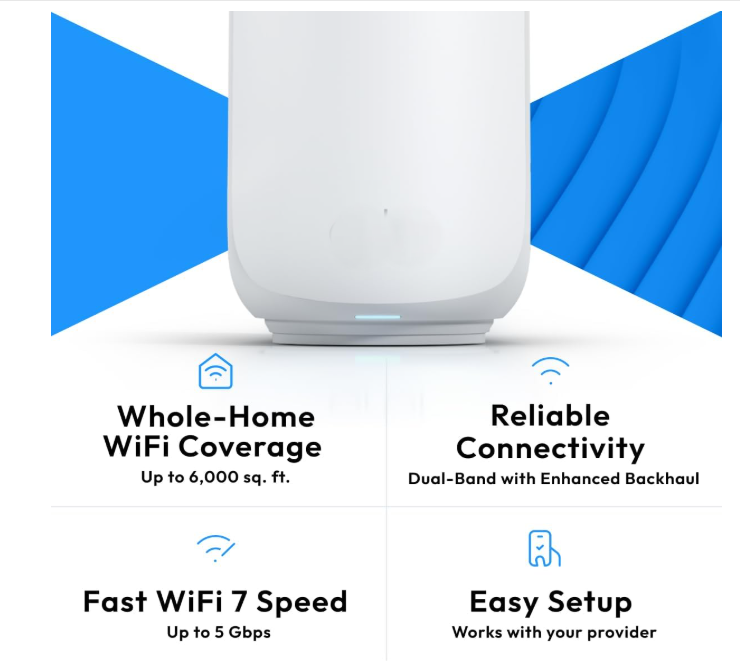
Key Features of the Deco App
- Easy Setup: Deco app guides you in the initial setup process of Deco Mesh Wifi System, you can quickly connect multiple Deco units to create a seamless Wi-Fi network throughout your home.
- Network Management: Customize your Wi-Fi network name (SSID) and password and manage both 2.4GHz and 5GHz bands. Moreover, users can create a separate Wi-Fi network for guests to keep your main network secure. View all devices connected to your network and prioritize bandwidth for specific devices if needed.
- Parental Controls: Set time limits for internet access on specific devices, Pause internet access for certain devices (e.g., during dinner or bedtime), Block inappropriate websites or content for children.
- QoS (Quality of Service): Prioritize bandwidth for specific devices or activities (e.g., gaming, streaming), Ensure that critical devices or applications get the necessary bandwidth for smooth performance.
- Security: Homecare: It’s built-in security feature offers real-time protection against malicious threats, including antivirus, intrusion prevention, and more. Regular firmware updates to ensure your network is protected against the latest vulnerabilities.
- Remote Management: Control your network from anywhere using the app. You can check connected devices, adjust settings, or troubleshoot issues even when you’re not at home.
- Network Map: Visualize your network topology, showing how devices are connected to each Deco unit, helps identify weak spots in your Wi-Fi coverage and optimize the placement of Deco units.
- Speed Test: Run speed tests directly from the Deco app to check the performance of your internet connection.
- Firmware Updates: Deco app notifies you when new firmware updates are available for your Deco system, ensuring you always have the latest features and security patches.
Deco Mesh Wi-Fi Setup using Deco Mobile App
The Deco App is a powerful tool for managing your Deco Mesh Wi-Fi system. Whether you’re setting up your network for the first time or adjusting on the go, the app provides a simple and intuitive way to ensure your home Wi-Fi is fast, secure, and reliable. Feel free to ask if you have any specific questions about the app or need help with a particular feature! Setting up your Deco Mesh Wi-Fi system using the Deco Router App is a straightforward process. Below is a step-by-step guide to help you set up your Deco mesh network from scratch.
Step 1: Prepare Your Equipment
Before starting the setup, make sure you have the following:
- Deco units (at least one main unit and any additional satellite units).
- A modem is provided by your Internet Service Provider (ISP).
- An Ethernet cable (usually included with the Deco package).
- A smartphone or tablet with the Deco App installed.
- Ensure your smartphone has an active internet connection (Wi-Fi or mobile data).
Step 2: Download and Install Deco App
Download Deco App from the Apple App Store or the Google Play Store in case of Android devices. Launch Deco App on your Mobile device to start setup.
Step 3: Connect the Main Deco Unit to Your Modem
- Power Off Your Modem: Turn off your modem by unplugging it from the power source. This ensures a clean connection.
- Connect the Main Deco Unit: Use the provided Ethernet cable to connect the WAN port of the main Deco unit to the LAN port of your modem.
- Power On the Modem and Deco Unit: Plug the modem back into the power source and wait for it to fully boot up (this may take a minute or two). Plug the main Deco unit into a power outlet and wait for the LED light to turn blue or blink orange. The blinking orange light indicates that the Deco is ready to be set up.
Step 4: Launch the Deco App and Create an Account
- Open the Deco App: Launch the Deco app on your smartphone.
- Create Account: If you don’t already have an account, you’ll need to create one.
- You can sign up using your email address or social media accounts like Google or Facebook. If you already have an account, log in.
Step 5: Start the Setup Process
- Tap Set Up: After logging in, tap the “Set Up” button to begin the setup process.
- Follow the On-Screen Instructions: The app will guide you through the setup process step by step. Follow the prompts carefully.
- Select Your Deco Model: The app will ask you to select the model of your Deco unit (e.g., Deco M5, Deco X20, etc.). Choose the correct model from the list.
- Connect to the Deco Wi-Fi Network: The app will prompt you to connect your smartphone to the temporary Wi-Fi network broadcasted by the Deco unit. The network name will typically be something like “Deco XXXX” (where “XXXX” is a unique identifier).
- Go to your phone’s Wi-Fi settings and connect to this network.
Step 6: Configure Your Internet Connection
- Internet Connection Type: The app will automatically detect your internet connection type (e.g., DHCP, PPPoE, Static IP). If your ISP requires a username and password (common for DSL connections), the app will prompt you to enter them.
- Set Up Your Wi-Fi Network: You’ll be asked to create a Wi-Fi name (SSID) and password for your new Deco network. This will be the Wi-Fi network that all your devices will connect to. You can choose to use the same SSID for both the 2.4GHz and 5GHz bands (recommended for seamless roaming) or create separate SSIDs for each band.
- Confirm Settings: Review your settings and confirm. The app will apply the configuration to your Deco system.
Step 7: Add Additional Deco Units (Optional)
If you have additional Deco units to expand your Wi-Fi coverage, follow these steps:
- Place the Next Deco Unit: Place the next Deco unit within range of the main Deco unit (ideally within 2-3 rooms or about 30 feet away).
- Power On the Unit: Plug the additional Deco unit into a power outlet and wait for the LED light to blink orange, indicating it’s ready to be added to the network.
- Follow the App Instructions: The app will detect the new Deco unit and guide you through adding it to the network. Simply follow the on-screen instructions.
- Repeat for Additional Units: Repeat this process for any additional Deco units you want to add to your network.
Step 8: Finalize the Setup
- Test Your Network: Once all Deco units are connected, the app will display a network map showing how the units are connected. You can run a speed test directly from the app to check your internet speed.
- Enable Advanced Features (Optional): Parental Controls — set time limits or block inappropriate content for specific devices.
- QoS (Quality of Service): Prioritize bandwidth for gaming, streaming, or other activities.
- Guest Network: Create a separate Wi-Fi network for guests to keep your main network secure.
- Firmware Update: The app will check for any available firmware updates for your Deco system. If an update is available, the app will prompt you to install it. Firmware updates ensure your Deco system has the latest features and security patches.
Step 9: Manage Your Network Remotely
Once the setup is complete, you can manage your Deco network remotely using the Deco app:
- Monitor Connected Devices: View all devices connected to your network.
- Pause Internet Access: Temporarily pause Internet access for specific devices.
- Adjust Wi-Fi Settings: Change your Wi-Fi name, password, or other settings from anywhere.
Set Up Your Deco Mesh Wi-Fi in Three Simple Steps
Use the Deco Mobile App to create your Mesh network, personalize its settings, and stay in control of every connected device.
1
Connect and Add Your Deco
Download the Deco App, sign in with your ID, then connect your main Deco unit to your modem and follow the in-app prompts to detect and add it.
2
Create and Configure Your Network
Choose a network name and strong password, select your connection type if prompted, and place additional Deco units around your home to extend seamless coverage.
3
Manage Devices and Keep Control
Open the Deco App anytime to view connected devices, pause access, set parental controls, create a guest network, run speed tests, and optimize your Wi-Fi.
How do I set up my Mesh Router using the Deco App?
To set up your Wi-Fi Mesh Router, open the Deco App and follow the guided setup process. Connect your device to the router, and the app will automatically detect and configure the network settings for you.
Can I manage multiple devices with the Deco App?
Yes, the Deco App allows you to manage multiple devices connected to your network. You can monitor usage, set parental controls, and prioritize devices for optimal performance.
Is the Deco App compatible with all Mesh devices?
The Deco App is compatible with most Mesh Wifi Series Routers and Nodes. Users can configure Wi-Fi 6 and Wi-Fi 7 Series Deco Mesh Devices using Deco App
How do I update the firmware using the Deco App?
To update the firmware, open the Deco App, navigate to the settings menu, and select ‘Firmware Update.’ The app will guide you through the update process.
What should I do if I forget my Deco App login details?
If you forget your login details, use the ‘Forgot Password’ option on the app’s login screen to reset your password. Follow the instructions sent to your registered email address.
Deco Mesh Wireless – Specifications and Troubleshooting
Deco LED Light Colors :
- Blue: The Deco unit is connected and working properly.
- Orange: The Deco unit is not connected to the internet or needs to be set up.
- Red: There is a problem with the connection (e.g., no internet or firmware issue).
Common Issues :
- No Internet Connection: Ensure your modem is working correctly and connected to the main Deco unit.
- Deco Units Not Connecting: Make sure the additional Deco units are within range of the main unit or another Deco unit.
- App Not Detecting Deco: Restart the app and ensure your phone is connected to the Deco’s temporary Wi-Fi network during setup.
- By following these steps, you should have a fully functional Deco Mesh Wi-Fi system that provides seamless coverage throughout your home. The Deco App makes it easy to manage your network, prioritize devices, and ensure a secure and reliable internet connection.
- The IP address 192.168.68.1 is commonly used by Deco mesh Wi-Fi systems as the default gateway for accessing the router’s web-based management interface. If your Deco system is using this IP address, you can use it to log in and configure settings such as network setup, parental controls, device prioritization, and more.
Steps to Access Deco Dashboard page via 192.168.68.1
- Connect to Your Network: Ensure that your computer or mobile device is connected to the Deco network either via Wi-Fi or a wired Ethernet connection.
- Open a Web Browser: Open any web browser (Google Chrome, Firefox, Safari, etc.) on your device.
- Enter the IP Address: In the browser’s address bar, type 192.168.68.1 and press Enter .
- Log in to the Deco Management Interface: You will be prompted to enter your login credentials. If you’ve changed these credentials before, you’ll need to enter the updated username and password.
- Access the Settings:
- Once logged in, you will have access to the Deco’s management dashboard to adjust various settings like Wi-Fi name/password, firmware updates, DHCP settings, and more.
Alternative Method: Using the Deco Wi-Fi App
Instead of accessing the router through the web interface, you can also manage your Deco system using the Deco app (available for iOS and Android). The app allows you to control most of the same settings without going through the web interface.
Troubleshooting:
- Can’t Access 192.168.68.1?
- Double-check that you’re connected to the correct network.
- Try resetting your Deco to restore default settings (this may change the IP address back to default).
- Ensure there are no typos when entering the IP address.
- Forgot Login Credentials?
- You may need to reset the Deco to factory settings if you’ve forgotten the username and password. This can usually be done by pressing the reset button on the device for about 5-10 seconds.
Set Up Smarter Wi-Fi with the Deco App
Download the Deco App to finish your mesh Wi-Fi setup, monitor connected devices, and keep your home network fast, secure, and reliable.